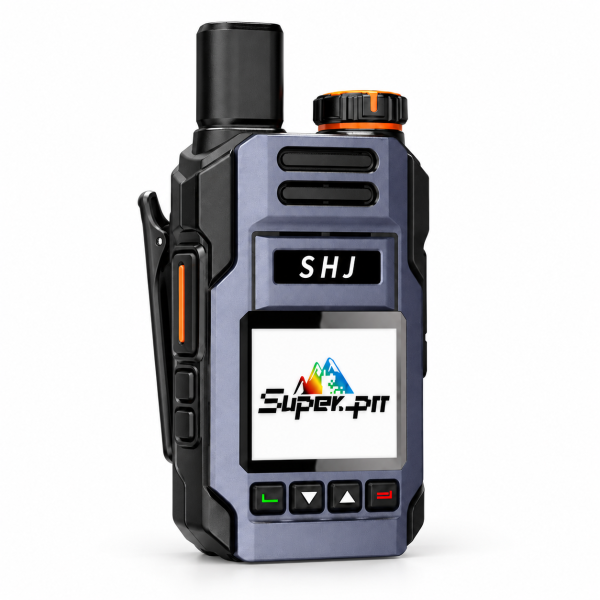
If your SHJ Q7 PoC radio switches on but cannot reach the team, begin with its network and platform setup. The current store offer includes one Q7, a SIM card, and lifetime free included SIM and Super-PTT platform services. Communication still requires activation, compatible mobile coverage and the correct group configuration.
1. Describe what is happening
Before changing settings, note whether the radio cannot connect at all, connects but cannot hear a group, or works in one location but fails in another. Record any displayed error message and the time of the test.
Have one known team participant available to reply. A short test with that participant is easier to interpret than several people speaking at once. Confirm the radio has power and an audible volume before reviewing the service configuration.
2. Confirm device and SIM service activation
The Q7’s listed setup begins with confirming activation of the device and included SIM service. If this is a new unit or it has never completed a successful call, ask support to check activation against your order.
The lifetime free offer applies to the included SIM service and Super-PTT platform service. It does not remove the need for a working network connection, and it does not state a lifetime hardware warranty. If your order came from a different offer, confirm its own service terms rather than assuming every Q7 package is identical.
3. Check coverage at the test location
The Q7 communicates through compatible mobile networks. Coverage and platform availability affect whether a call can be completed. If calls work outside a building but fail inside, report that difference with the location details rather than immediately rebuilding the group.
For travel or use in another country, confirm destination compatibility with support beforehand. Included service does not guarantee coverage everywhere. Repeat a simple call in the actual working area before relying on the setup for normal team activity.
4. Verify the radio binding
The current listing describes binding the radio in the Super-PTT app using its device QR code or IMEI. Confirm that the device associated with your app setup is the unit you are testing.
If binding fails, capture the exact message and ask support for the appropriate next step. Send device identifiers privately to support, together with your order information. Avoid deleting an existing working configuration simply to experiment with a different account.
5. Ask the group owner to check membership
Team members need compatible Super-PTT access and the appropriate group configuration. Ask the owner to confirm the intended group and whether your radio is included. Similar group names can make a simple selection mistake difficult to spot.
After the owner checks membership, repeat a short call and reply test. Note whether the radio can send, receive or do neither. If another team device works in the same location and group, include that observation in your support request.
6. Distinguish app playback from live radio audio
The product page describes reviewing group voice messages through the Super-PTT app. That is an app feature and does not establish built-in local recording on the handheld.
If app playback works while live radio communication does not, describe both results to support. They are useful observations, but one does not by itself identify the cause of the other.
What to send support
Contact dxu76256@gmail.com with the exact order configuration, country and test location, device version, error message, and whether calls fail in one or both directions. State whether the unit has worked before and whether other team devices are affected.
Review the SHJ Q7 product page for current package details and its product video. Check our Downloads page for available resources. Confirm the exact model and hardware version before installing any file, and ask support if your resource is not listed.
Based on the current SHJ Communications Q7 listing. Service availability depends on the selected offer, activation, compatible coverage and platform configuration.