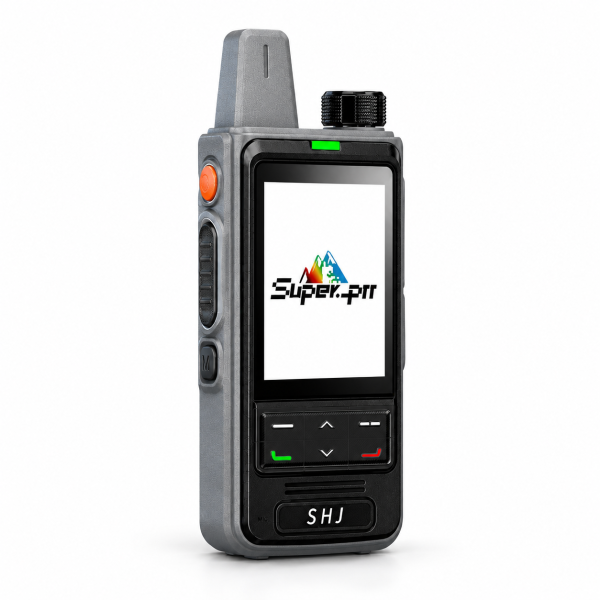
Adding a new handheld to a team involves more than turning it on. The SHJ 2.4-inch PoC radio is sold as a single gray-and-black unit with a SIM card and included lifetime free SIM and Super-PTT platform services. For a team that already uses compatible Super-PTT access, the useful question is how to get that new unit into the correct group and confirm it can communicate.
1. Confirm the team uses compatible Super-PTT access
This radio communicates through a mobile network and the Super-PTT platform. Before ordering an additional unit, check which platform your existing team uses and who manages its groups. A shared brand name or a similar-looking radio does not by itself confirm that two devices can join the same service.
Ask the group owner which group the new user should join and how membership will be approved. If the existing system is different, contact support with the exact radio models and platform details before assuming compatibility.
2. Check the included service for your location
The current listing includes lifetime free service for the supplied SIM and the Super-PTT platform, with no recurring subscription fees for those included services. That offer still depends on compatible network coverage, activation and platform availability. It is not a promise that the radio works in every country, building or remote area.
Confirm the intended destination and service activation with support. Test the radio where your team actually works, including any indoor locations where reception may differ from an outdoor test. The lifetime service offer does not state a lifetime hardware warranty.
3. Bind the new radio to the app
The listed setup process starts by registering or signing in to the Super-PTT app, then binding the device using its QR code or IMEI. Use the identifier belonging to the new radio and keep your order details handy in case activation assistance is needed.
If binding fails, note the exact message rather than repeatedly changing unrelated settings. Support can investigate more effectively when you provide the product, destination and error details. Share device identifiers directly with support rather than posting them publicly.
4. Join the intended group and check membership
Once the device is bound, create a group or join the team’s existing group through the app. Group owners can manage members. Confirm that the new participant appears in the intended group and that the other participants have compatible access and the appropriate group configuration.
Give each user a clear role in your initial test: one person sends a short call while another listens and replies. Confirm communication in both directions before the new radio is handed over for normal use.
5. Learn the display and distinguish app features
The radio has a 2.4-inch display, front navigation keys and a top control knob. Take a few minutes to identify the controls and check the displayed status before beginning the group test. Keep the first test focused on basic communication.
The listing also describes group voice-message playback in the Super-PTT app. This is an app feature; it does not establish that the handheld has built-in local recording. If message review is part of your workflow, test it in the app separately so users know where to find it.
6. Complete a short handover checklist
Before the new user starts, confirm that service is active, the device is bound, the correct group is configured and another team member has successfully replied. Repeat the call test in the intended working location. Record who manages membership so future additions are easier to organize.
See the SHJ single-unit PoC product page for current package details. Visit our Downloads page for available support resources. If a file for your exact unit is not listed, contact dxu76256@gmail.com before installing software intended for another radio.
Based on the current product listing. Included services, activation and communication availability remain subject to the selected product and compatible network access.