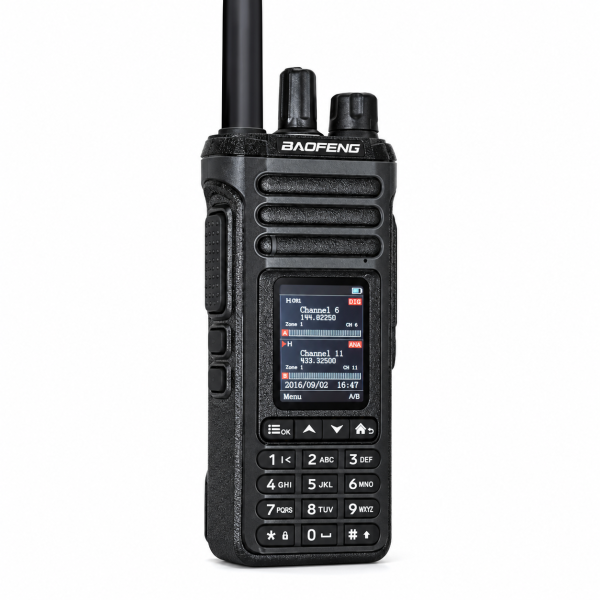
If your phone can see a Bluetooth device but your BAOFENG DM-36 still won’t pair as expected, first identify what you want to connect. A headset carries audio, a wireless PTT button controls transmission, and an app may look for a different type of device. These are separate tests, and the result of one does not establish whether the others will work.
Start with a call using the radio itself
Before pairing an accessory, check that you can hear a compatible radio through the DM-36’s speaker and make a short reply using the built-in PTT. Use the same known channel and test partner throughout. If that call fails, resolve the channel settings first; changing Bluetooth options will not correct a mismatched radio configuration.
If the headset won’t pair or has no audio
The DM-36 product listing describes pairing with compatible wireless headsets. Confirm the headset model before testing, then follow the pairing instructions for both devices. If the headset usually connects to a nearby phone, disconnect it there during the test to eliminate that competing connection.
Once the devices show that they are paired, test incoming audio first. Then have your test partner listen for your reply. The DM-36 lists separate headset audio level and microphone gain controls. If you can hear your partner but they cannot hear you clearly, note that distinction and adjust only the relevant control in small steps.
If the wireless PTT button doesn’t key the radio
Test wireless PTT separately from headset audio. A headset that plays incoming calls does not confirm that the PTT button has paired. Check the button’s charge and model, then use the radio’s wireless PTT pairing settings as described in the supplied instructions. With your partner listening, check whether pressing the button starts the call and releasing it ends transmission. Test only on a channel you are authorized to use.
If an app sees a device but reports a model mismatch
Record the exact app name, the selected radio model and the error. A Bluetooth device name appearing in a scan does not establish that it is the DM-36 or that the app supports it. Power off the radio and check whether the same entry still appears; if it does, it may belong to a nearby accessory or another device.
The current DM-36 listing documents Bluetooth for compatible headset audio and wireless PTT, and describes PC programming for channels and contacts. It does not document OLA app pairing for this radio. If your goal is to edit channels, check the supported PC software and cable for your exact unit rather than choosing a different model in an app.
What to send if you still need help
Send SHJ Communications support the radio version, headset or PTT model, and the first step that failed. State whether the built-in speaker and PTT work. For an app error, include the exact wording and the Bluetooth name displayed. These details help distinguish an accessory issue from an app compatibility question.
See the DM-36 product page for current accessory details and our Downloads page for available software and instructions. Check the exact model before installing any file.