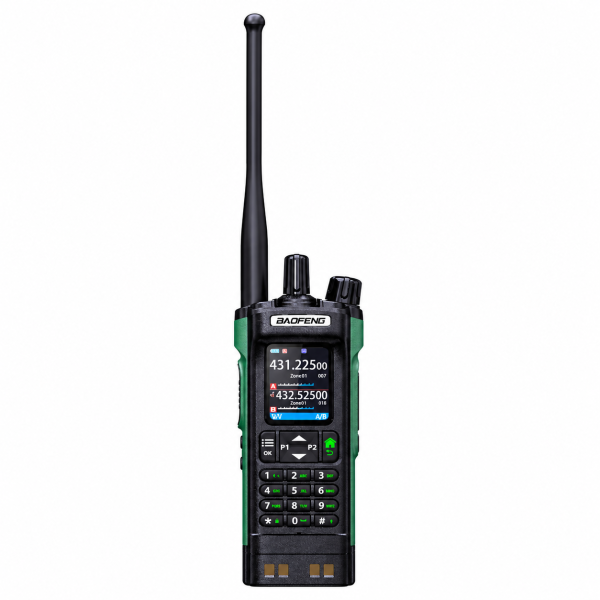
A DMR radio can show a familiar channel name while still being configured differently from the radio you want to call. The BAOFENG DM-32 supports both DMR digital and analog communication, so a useful first step is to check the complete configuration rather than changing settings at random.
1. Identify the exact test that fails
Begin with a charged radio, correctly fitted antenna and an audible volume. Choose one intended compatible radio for a short test. Note whether neither radio hears the other, only one direction works, or the issue happens only on a particular channel.
Keep a record of the selected zone and channel on each unit. If a repeater is involved, identify the intended system and obtain its correct settings from the operator. A direct radio-to-radio configuration and a repeater configuration should not be treated as interchangeable.
2. Confirm analog or DMR mode
The DM-32 supports both modes, but the two radios need a compatible mode for the call you are testing. Check the configured channel type on both devices. A similar channel name does not prove that the underlying mode or other parameters match.
If an analog test works but a digital test does not, that result gives you a reason to examine the digital settings more closely. It does not by itself identify a hardware fault.
3. Review the complete digital settings
The current DM-32 listing highlights frequency, color code, time slot, contact and receive-group settings as possible requirements for digital communication. Compare the configuration against the intended radio or system, using the correct programming resources for your version.
Do not assume matching frequency alone completes the setup. Review the intended call type and destination contact, together with the receiving configuration. Ask the system administrator for an approved configuration when you are joining an existing group.
4. Check the zone and channel you actually selected
The DM-32 stores up to 4,000 channels across 250 zones, with up to 64 channels in each zone. That organization is helpful, but similar names in different zones can make the wrong selection easy to miss.
For troubleshooting, use a small list of clearly identified entries. Confirm the displayed zone and channel before holding PTT, then release PTT to listen for the reply. Repeat the same two-way test after each change so the result remains useful.
5. Preserve your current programming before editing
The listing supports PC programming for channels, contacts, power levels and other settings. Confirm software, cable and hardware-version compatibility before connecting. Read and save the current configuration when supported, and keep an unchanged copy before making edits.
A programming cable is not confirmed as included in every offer. Avoid installing another model’s software or firmware as a troubleshooting shortcut. Correcting a channel profile and changing the radio’s firmware are different operations.
6. Test optional features after voice communication works
Establish a basic call before testing digital text messaging or recording. The DM-32 offers private, group, all-call and one-touch calling with suitable configuration, so choose the function needed for your actual setup.
Its approximately 10-hour recording specification refers to DMR recording storage. It does not describe battery life, and the listing specifies digital-mode recording rather than analog recording. Test these functions separately once calls are reliable.
What to send support
If the problem continues, contact dxu76256@gmail.com with the exact model and version, programming software used, the other radio or system involved, and whether communication fails in one or both directions. Include any error message and the zone/channel you selected.
Review the DM-32 product page for current features and package details. Visit our Downloads page for available resources, confirming compatibility before installing files. Use only frequencies and settings you are authorized to operate.
Based on the current SHJ Communications product listing. Available functions depend on the supplied version and compatible configuration.